Each Home Assistant user sees only what they should
Decide which panels and dashboards each user sees from one visual admin panel: profiles, a start dashboard, a locked sidebar and kiosk mode per user, profile and device. No YAML.
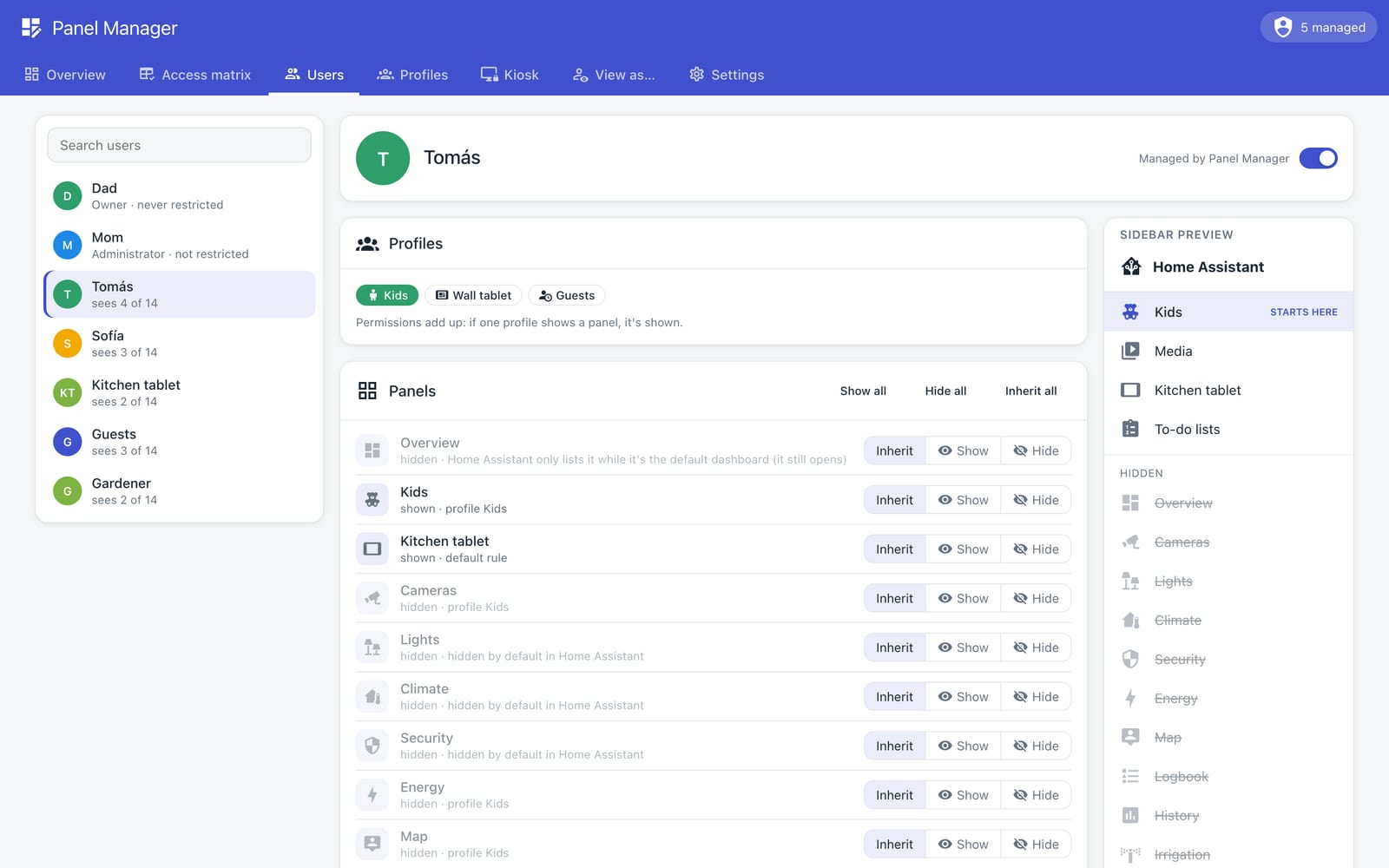
Home Assistant lets each user hide and reorder their own sidebar, but an administrator can’t do it for them. The kids end up seeing Energy, the kitchen tablet shows every dashboard and a guest has the cameras one click away in the sidebar. The usual workarounds mean YAML pasted into each dashboard, users matched by display name, and a fix every time the frontend changes. SK Panel Manager turns that into a screen: tick what each person sees, save, and every sidebar changes instantly.
SK Panel Manager
Access matrix
Every user and profile against every panel (dashboards, built-in panels, integrations and add-ons) on one screen. One click cycles inherit, show or hide, and hovering a cell shows which rule decided it.
Profiles
Group rules into profiles such as Kids, Guests, Wall tablet or Staff, each with its own icon and colour. A user can have several and their permissions add up. A rule set on the user always wins.
Live sidebar preview
While you edit a user, the right-hand column shows their sidebar exactly as it will look: the order, the dashboard they start on and what stays hidden. Nothing changes until you save.
Default dashboard and order
Choose the dashboard each user or profile starts on and drag the panels into the order you want. If a default dashboard gets hidden, users land on the first panel they’re allowed to see.
Locked and redirected
Managed users can’t edit their sidebar from their profile. If they open a hidden panel by its address (a link, a bookmark or the back button), they’re sent back to their dashboard. Both are optional.
Visual kiosk mode
Hide the header, the sidebar, single buttons or parts of entity dialogs with switches, or turn on a full kiosk. It works in layers (everyone, profile, user and device) and can differ on each dashboard.
View as…
Pick a user, a device and a dashboard and see exactly what they get: their sidebar, the kiosk mock, where a hidden dashboard sends them, and a “Why” table with the rule behind every panel and option.
Safe by design
The owner is never restricted, so you can’t lock yourself out. Administrators are only restricted if you turn that on. Uninstalling gives every user back the sidebar they had before.
- You set rules on profiles and users. Panels without a rule follow a global policy: show them or hide them.
- SK Panel Manager writes each user’s sidebar: which panels are hidden, their order and the default dashboard. If a user changes it from their profile, it’s put back immediately.
- Every open browser updates live, with no reload. Dashboards created later follow the global policy automatically.
- 01 / 04
Layered kiosk mode
Layers combine like this: General (every managed user) → the user’s profiles → the user → the device. Within each layer, a setting for one dashboard beats the “all dashboards” one, and every option has Inherit, On or Off. Each browser or app that opens Home Assistant shows up as a device: give it a name (“Kitchen tablet”) and its own kiosk, which applies to whoever uses it, administrators included.
- Screen: full kiosk, hide the header, the sidebar or the menu button.
- Header buttons: search, Assist, edit dashboard and the ⋮ menu.
- Sidebar items: settings, notifications and profile.
- Entity dialogs: block them or hide their ⚙ and ⋮ menu.
- Interaction: block the context menu or touch, for look-only screens.
- 02 / 04
Profile ideas
Some profiles people usually set up at home and at work:
- Kids: their dashboard and media; no energy, logbook, history, cameras or map.
- Wall tablet: one room dashboard and to-do lists; nothing else.
- Guests: overview and media; no cameras, energy or history.
- Staff or gardener: only the panel they work with, such as irrigation.
- Elderly parent: a simple dashboard with big buttons and nothing technical.
- 03 / 04
Kiosk Mode import and backups
One click reads the kiosk_mode block of every dashboard and turns it into kiosk settings, matching users by name, and lists what couldn’t be imported and why. The whole configuration can be exported to a file and imported here or into another installation; imports land as unsaved changes you can review.
- 04 / 04
Built on Home Assistant, not on top of it
It writes each user’s sidebar and default dashboard to Home Assistant’s own per-user storage, the same place the profile’s “Edit sidebar” dialog uses, and keeps a copy of what was there to restore it when the user is released. The browser module only listens to Home Assistant’s own events and doesn’t depend on the page structure, so frontend updates don’t break it. It includes downloadable diagnostics with no user names or ids.
| Home Assistant | Kiosk Mode | Custom Sidebar | SK Panel Manager | |
|---|---|---|---|---|
| An admin decides what another user sees | No | Yes | Yes | Yes |
| Visual editor, no YAML | Not applicable | No | No | Yes |
| Every user and panel on one screen | No | No | No | Yes |
| Profiles or user groups | No | No | No | Yes |
| Default dashboard per user | No | No | Yes | Yes |
| Users matched by ID (renaming doesn’t break rules) | Not applicable | No | No | Yes |
| Doesn’t depend on the frontend’s page structure | Yes | No | No | Yes |
| Rules not readable without logging in | Yes | Yes | No | Yes |
| Hide header / kiosk mode | Partial | Yes | No | Yes |
| Kiosk per device | Not applicable | Partial | Not applicable | Yes |
| View as any user, with the reason | No | No | No | Yes |
| Backup and restore of the rules | Not applicable | Not applicable | Not applicable | Yes |
✓ Yes · ~ Partial · ✕ No · — Not applicable
- Press “Install with HACS”, or go to HACS → ⋮ → Custom repositories and add the repository address with type “Integration”.
- Search for SK Panel Manager, download it and restart Home Assistant.
- Go to Settings → Devices & services → Add integration → SK Panel Manager.
- “Panels” appears in the sidebar. If you don’t see it, reload the browser with Ctrl+F5.
You can also install it by hand: copy custom_components/sk_panel_manager into Home Assistant’s config/custom_components/ folder, restart and continue from step 3.
- Settings: choose what happens to panels without a rule. “Show them” is the easiest way to start; “Hide them” is the strictest, since new dashboards stay hidden until you allow them.
- Profiles: create one (for example, Kids), mark which panels to show or hide, pick its default dashboard and drag the order.
- Users: open a user, turn on their profiles and fine-tune any panel. Check the sidebar preview on the right.
- Save. Open Home Assistant as that user: the sidebar has already changed.
- Schedules: rules that apply only at certain times, such as Media for Kids from 5 to 8 pm.
- Optional blocking of hidden dashboards’ configuration.
FAQ
Can I lock myself out?
No. The owner is never restricted, and administrators only if you turn on “Restrict administrators”. The admin panel is always admin-only.
What happens if I uninstall it?
Every user gets back the sidebar and default dashboard they had before. Anything they changed themselves is kept.
Does it work in the iOS and Android companion app?
Yes. The app uses the same frontend, so the sidebar, default dashboard, locking and redirection all work the same. If a change doesn’t show up, close the app and open it again.
I created a new dashboard. Do I have to add it everywhere?
No. New panels follow the global policy: with “Show them” everyone sees it except users or profiles that hide it; with “Hide them” nobody sees it until you allow it.
Can I use it together with Kiosk Mode?
Yes, it doesn’t touch the dashboards’ YAML. Avoid turning on the same option in both for the same dashboard, or you won’t know which one is hiding it.
A tablet is stuck in kiosk mode. How do I get out?
Sign in as an administrator and add ?skpm_disable to the address. Kiosk stays off in that tab until you add ?skpm_enable or close it. You can also change the device’s settings from any other device.
A user still sees a panel I hid
Open “View as…” with that user and device: it shows the final result and which rule decided each panel. The owner and, by default, administrators are never managed. If the rules are right, reload that user’s browser.
Another open project

Need something custom for Home Assistant?
We build integrations, panels and cards for Home Assistant, and connect it to your other systems.