A professional irrigation manager inside Home Assistant
Its own panel to organise sprinklers into drag-and-drop groups, programs with several start times, simultaneous zones, smart conditions, a live map, watering reports and native Rain Bird support.
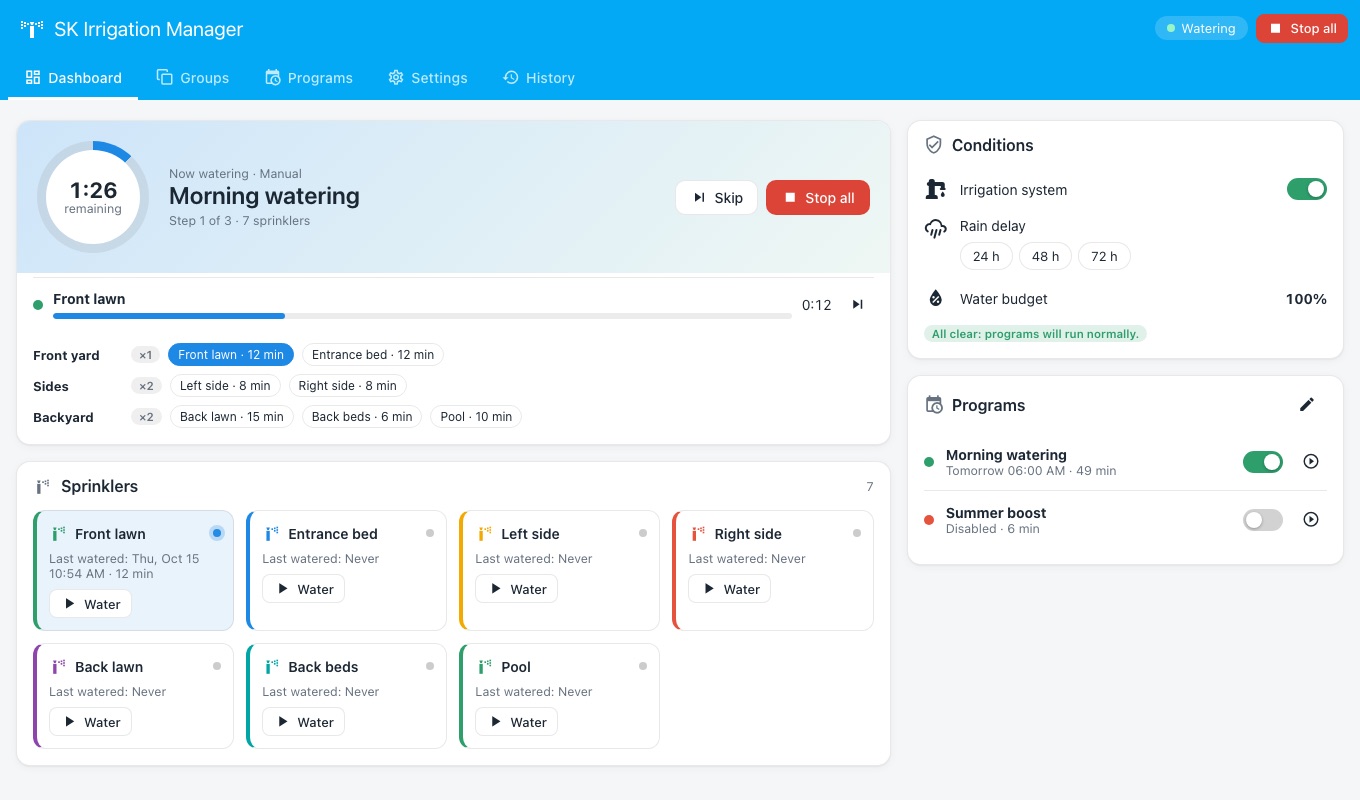
Scheduling irrigation with Home Assistant scripts and automations gets hard to maintain once there are many zones, several start times and rain exceptions: a script per sequence, helper timers for the countdown and conditions repeated in every automation. SK Irrigation Manager brings it all into one visual panel built for the person doing the watering, with safety rules for the hydraulic installation.
SK Irrigation Manager
Drag-and-drop groups
Drag your devices into groups and build each program’s sequence by dragging groups and sprinklers, with a mouse or on touch screens. It can also create the groups from your Home Assistant areas.
Flexible programs
Several start times a day (fixed time, sunrise or sunset). Weekdays, every N days, days of the month, odd or even days, specific dates and active months.
Run them your way
Sequential, or 2, 3, 4… sprinklers at once with a rolling queue. The same duration for all or one by one, in the order you choose.
Smart conditions
Rain sensors, accumulated millimetres, weather, frost, solar power or battery, or any Jinja template. They can be re-checked while watering and stop the run if they no longer pass.
Interactive timeline
Every sprinkler on a Gantt chart you adjust by dragging: the edge changes the duration and the bar changes the order. With zoom for long cycles and live duration and litres.
Safe by design
Master valve or pump, a hydraulic limit on simultaneous sprinklers, a maximum time per sprinkler, valves closed after a restart and unavailable sprinklers skipped.
Live map
Draw each sprinkler’s area on a drone photo, a site plan or satellite imagery and follow the property live, from one controller to the next.
Watering report
How much each program, group and sprinkler watered by day, week, month or year, with completed cycles and those skipped for rain or conditions. Daily totals are kept for years.
- 01 / 06
Live property map
Upload a drone photo or a site plan, or use satellite view, and draw each sprinkler’s area. The one watering ripples and a label shows how long it has been on and how long is left; the next one is outlined. Tap an area to water it for 5, 10 or 15 minutes.
- Several maps, for example one per controller plus a satellite view of the whole property. With “Follow watering”, the map switches by itself when the cycle moves elsewhere.
- A sprinkler can have several separate areas, which light up together.
- Maps are exported with their images in the backup.
- 02 / 06
Watering report
Stacked bars per program, lines for completed and skipped cycles and totals compared with the previous period. Group it by day, week, month or year, filter by program, group or sprinkler, and show watering time or estimated litres based on each sprinkler’s flow. Hover a bar to see each sprinkler’s detail for that period.
- 03 / 06
Rain Bird with exact durations
The official Rain Bird integration opens a zone with a default duration. SK Irrigation Manager recognises its entities and uses each sprinkler’s exact duration, closes it when it finishes or is skipped, and works with several controllers at once (for example, 24 stations across 3 controllers). It also works with any switch, valve or relay: OpenSprinkler, Shelly, Sonoff, ESPHome, Zigbee or Z-Wave.
- 04 / 06
Conditions: examples
Conditions can be global or for a single program, and can optionally apply to manual runs too.
- Don’t water if it’s raining, based on a state sensor.
- Don’t water if 5 mm or more fell today.
- Only water with the generator off, re-checked while watering.
- Protect the battery: stop if it drops below 20%.
- Advanced logic with a template, for example wind under 30 km/h before 9 am.
- 05 / 06
Cards, entities and services
It ships 4 dashboard cards that load by themselves (status, programs, groups and sprinklers), sensors for status, next run, current sprinkler and time left, a switch per program and services for your automations: run a program, water a group or a sprinkler, skip, stop all or set a rain delay.
- 06 / 06
Coming from YAML scripts?
What used to take several scripts and helpers is now configuration:
- A script with repeat and a delay per sprinkler → a program with order and time per sprinkler.
- Conditions in every automation → global or per-program conditions, with re-checking.
- mode: queued → built-in run queue.
- Helper timer for the countdown → next run and current sprinkler sensors.
| Irrigation Unlimited | Smart Irrigation | Rain Bird | SK Irrigation Manager | |
|---|---|---|---|---|
| Full visual configuration | No | Partial | No | Yes |
| Drag-and-drop groups | No | No | No | Yes |
| Several sprinklers at once per step | Partial | No | No | Yes |
| Order and time per sprinkler | Partial | No | No | Yes |
| Several start times, sun and seasons | Yes | Not applicable | No | Yes |
| Conditions re-checked live | Partial | No | No | Yes |
| Preview and Gantt chart | No | No | No | Yes |
| Water budget | Yes | Yes | No | Yes |
| Exact duration on Rain Bird | Not applicable | Not applicable | Partial | Yes |
✓ Yes · ~ Partial · ✕ No · — Not applicable
- Press “Install with HACS” or search for SK Irrigation Manager in HACS: it’s in the default store.
- Download it and restart Home Assistant.
- Go to Settings → Devices & services → Add integration → SK Irrigation Manager.
- “Irrigation” appears in the sidebar. If you don’t see it, reload the browser with Ctrl+F5.
You can also install it by hand: copy custom_components/sk_irrigation into Home Assistant’s config/custom_components/ folder, restart and continue from step 3.
- Groups: drag your sprinklers into groups, or press “Create groups from HA areas”.
- Programs: create one, choose days and start times and drag groups into the sequence. For each group, set how many sprinklers run at once, the duration and the order.
- Settings: add your conditions (rain, weather, power…) and, if you have one, the master valve or pump. The panel now shows the next run, live progress and the state of each condition.
FAQ
Does it work with sprinklers that are not Rain Bird?
Yes: with any switch, valve, input_boolean, light or fan entity (OpenSprinkler, Shelly, Sonoff, ESPHome, Zigbee, Z-Wave, relays…).
What happens if Home Assistant restarts in the middle of a run?
When it comes back, it detects the run was interrupted and closes every valve for safety. The cycle isn’t resumed automatically.
What if a sprinkler is unavailable?
It’s skipped, logged in the history and the sequence moves on to the next one.
Can two programs overlap?
They don’t clash: the second one waits in the queue or is skipped, depending on what you choose in the program.
I don’t see “Irrigation” in the sidebar
Make sure you added the integration under Settings → Devices & services and reload the browser with Ctrl+F5. In the mobile app, close it and open it again.
Another open project

Need something custom for Home Assistant?
We build integrations, panels and cards for Home Assistant, and connect it to your other systems.